Eight steps, once
Arrival
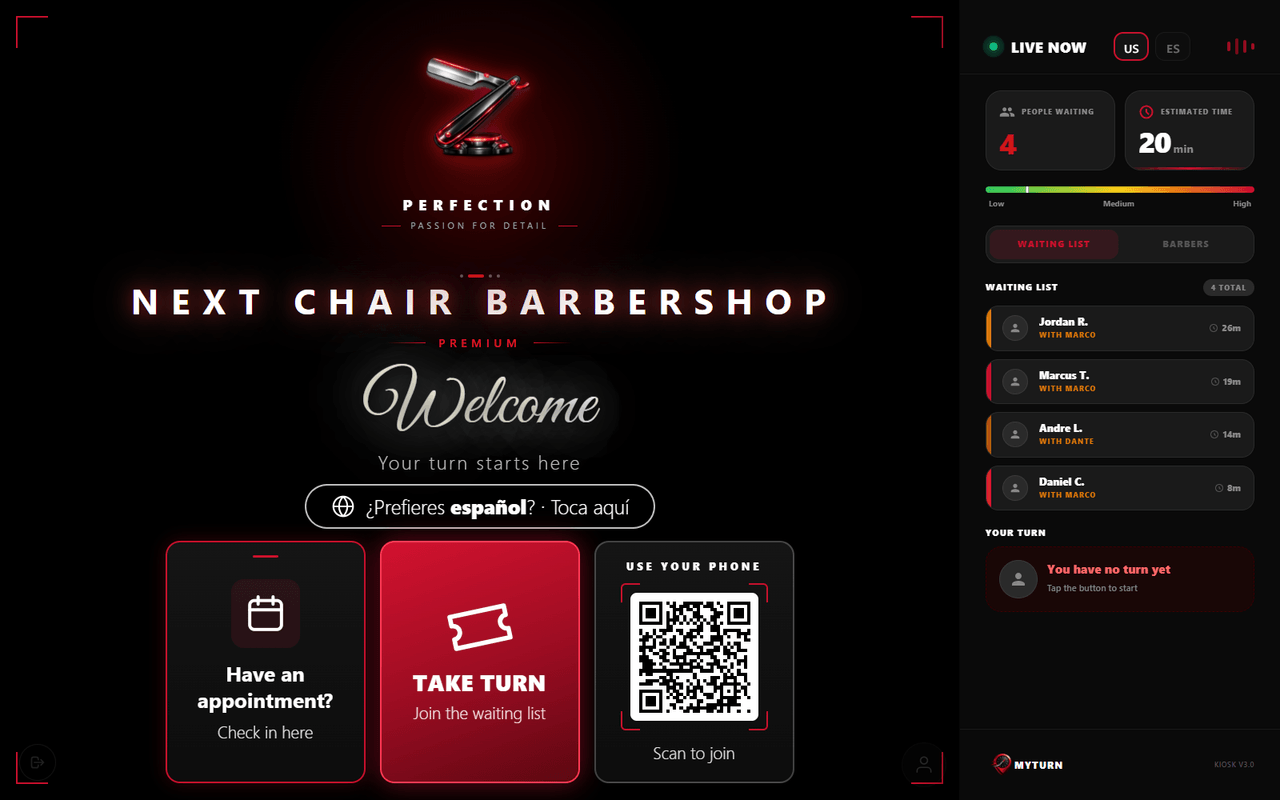
The tablet by the door greets the client with the shop’s own brand and one big card: TAKE TURN. Nothing to download, no account to create, nothing to read first.
Shops that turn them on show two more cards beside it: a QR code — a client who’d rather not touch a shared screen scans it and does the same thing from their own phone — and a check-in for clients who booked an appointment.
Phone
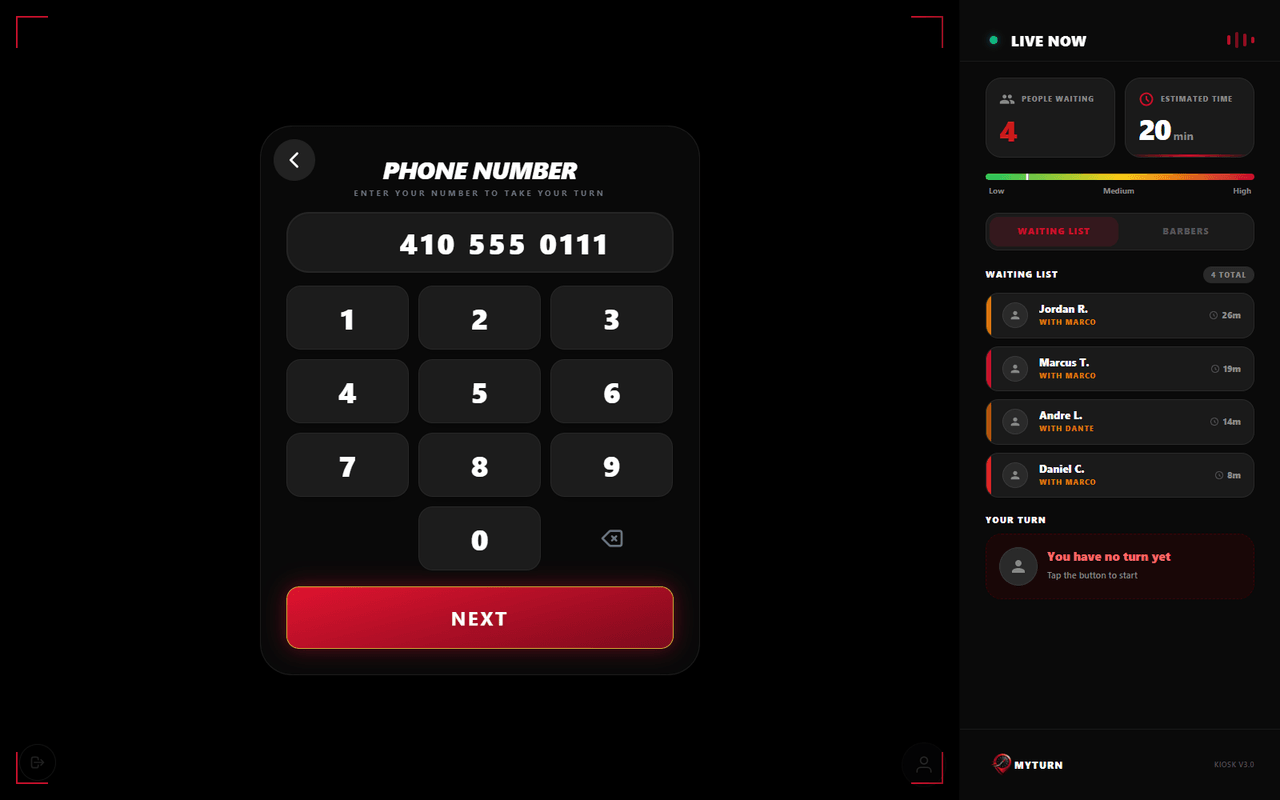
The client types their number on the on-screen keypad. No device keyboard, no small text field — large digits, sized to be read and tapped at arm’s length.
The number is the account. Nothing else is asked for, and nothing is saved until it’s confirmed.
Verification
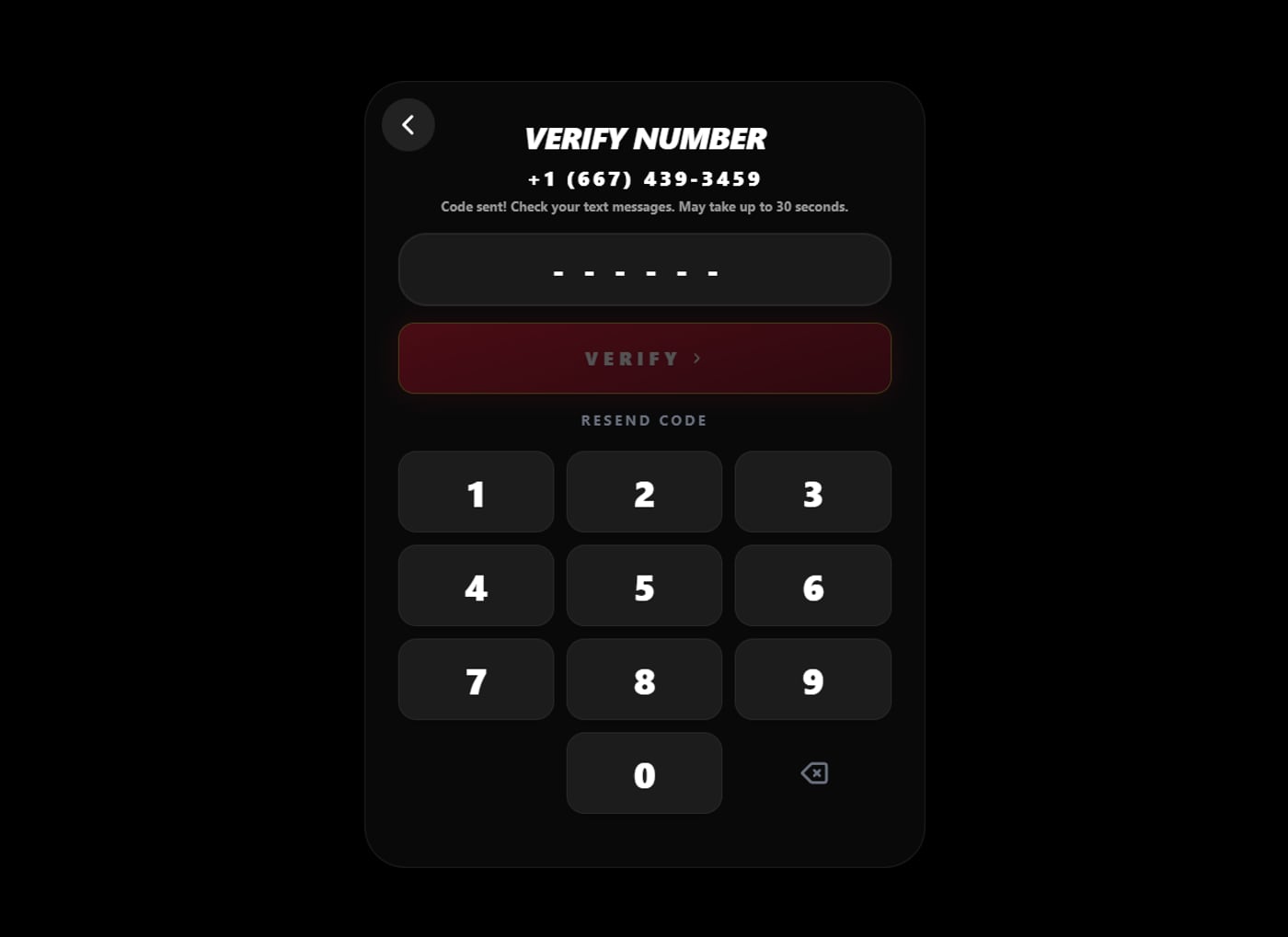
A six-digit code arrives by text. The client types it on the same keypad and taps Verify.
This happens once, on the first visit only. It’s what keeps a stranger’s number from being typed into a public tablet — and it’s why every number in the system belongs to the person standing in front of it.
Name and consent
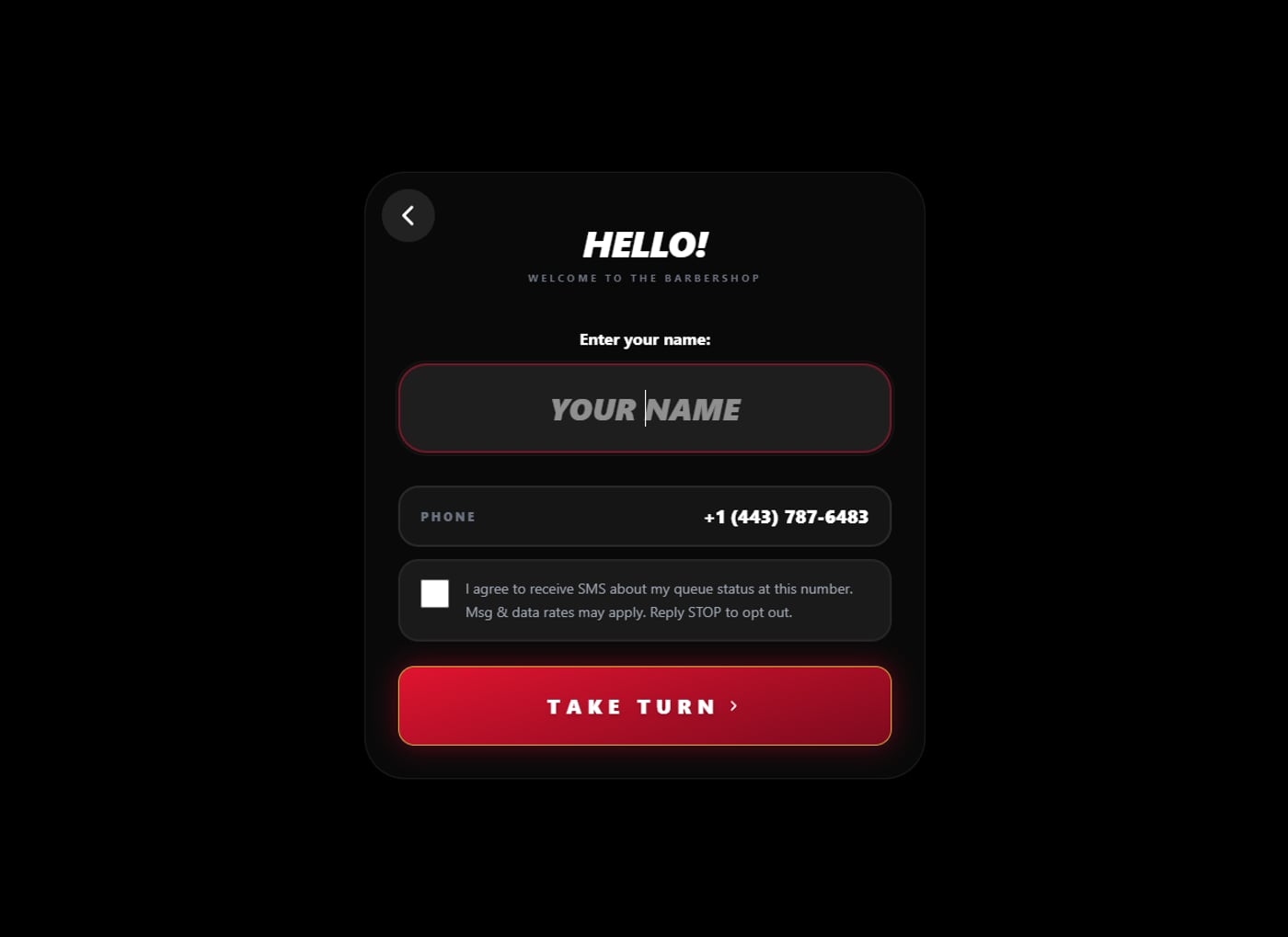
The client types their name. Below it, the number they just verified is shown back to them, and below that, one unticked checkbox offering text updates about their turn.
The button works either way. Ticking the box is not required to take a turn, and leaving it unticked changes nothing — same position in line, same wait, same service. Whichever way the client answers, the answer is saved and they are never asked again.
The box starts unticked on every visit. On a shared tablet, nobody inherits the previous person’s answer.
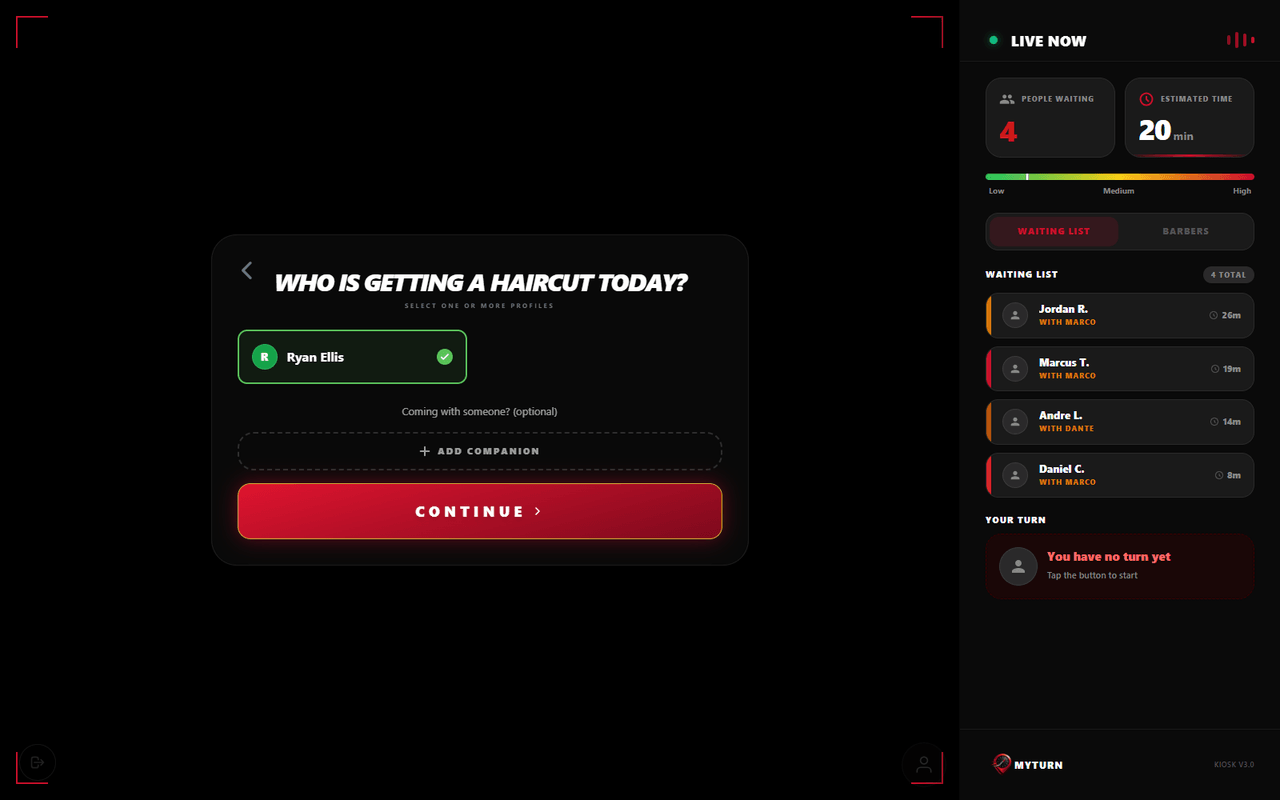
Who’s getting a haircut
Before choosing a service, the client confirms who the turn is for. A name typed here is added as a companion and stays with them in the queue.
On a first visit there’s one name, already selected. It earns its place from the second visit on: a parent checking in with two kids takes three turns in a single pass, and each one picks its own service and barber.
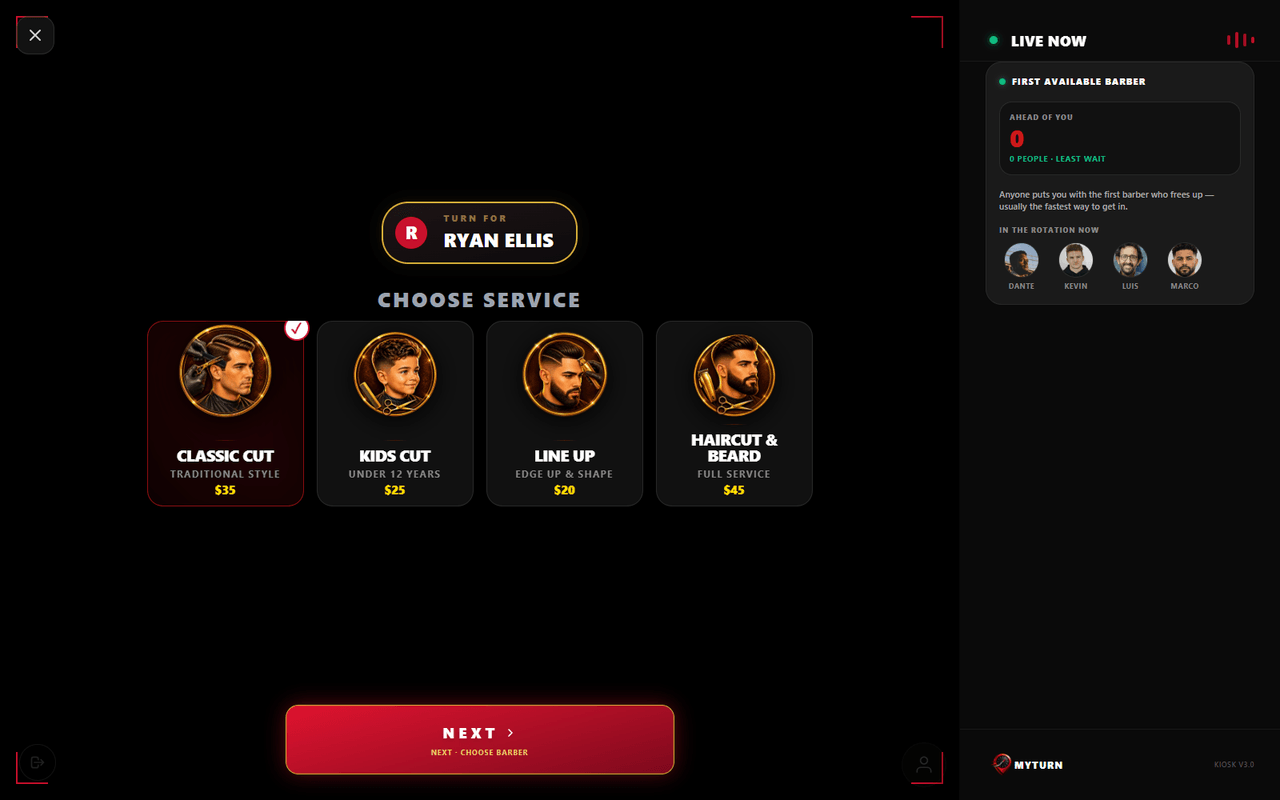
Service
The shop’s own services, with the shop’s own photos and prices. Not a generic list — whatever the owner configured is what appears, and anything switched off doesn’t.
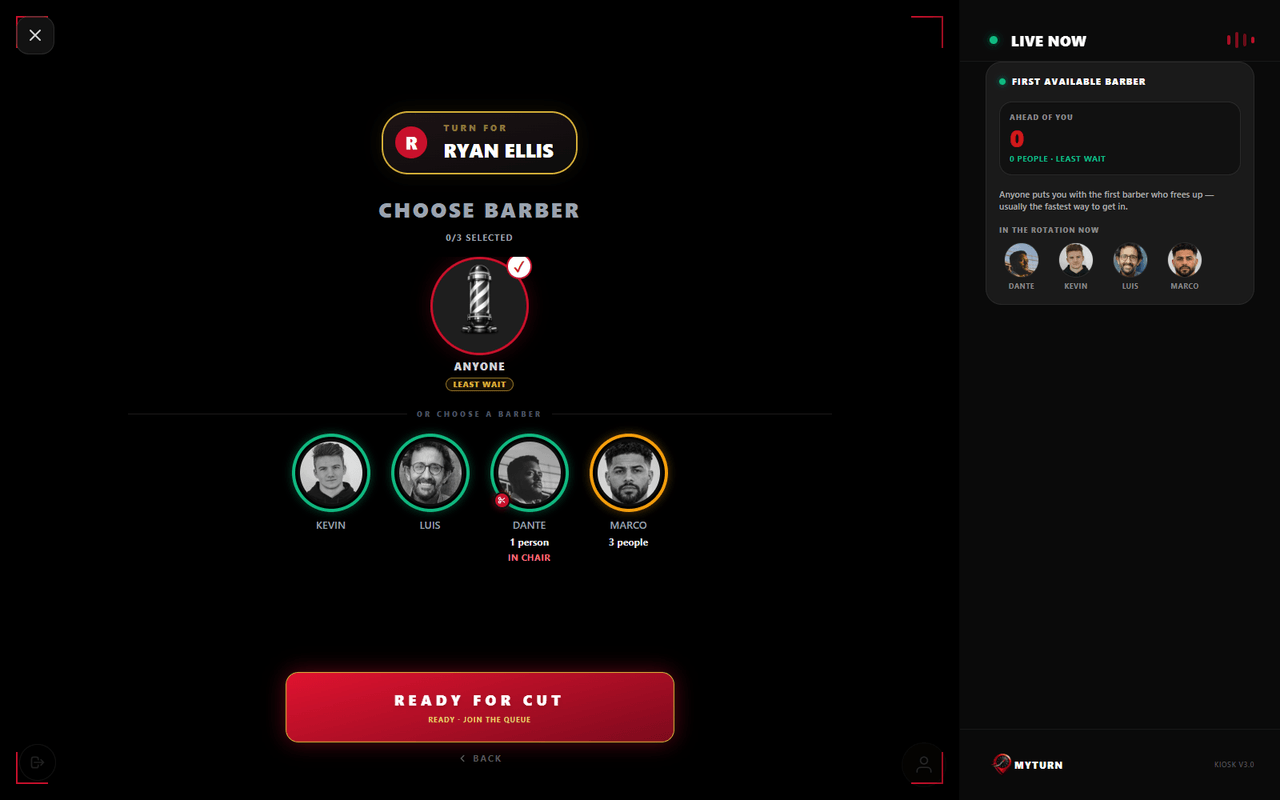
Barber
Real photos, real ratings, and how each barber’s day is filling up. It’s an informed choice rather than a guess.
Anyone in a hurry taps Anyone and goes to whoever frees up first — usually the fastest way through the door. If the client added companions, steps 06 and 07 repeat once per person.
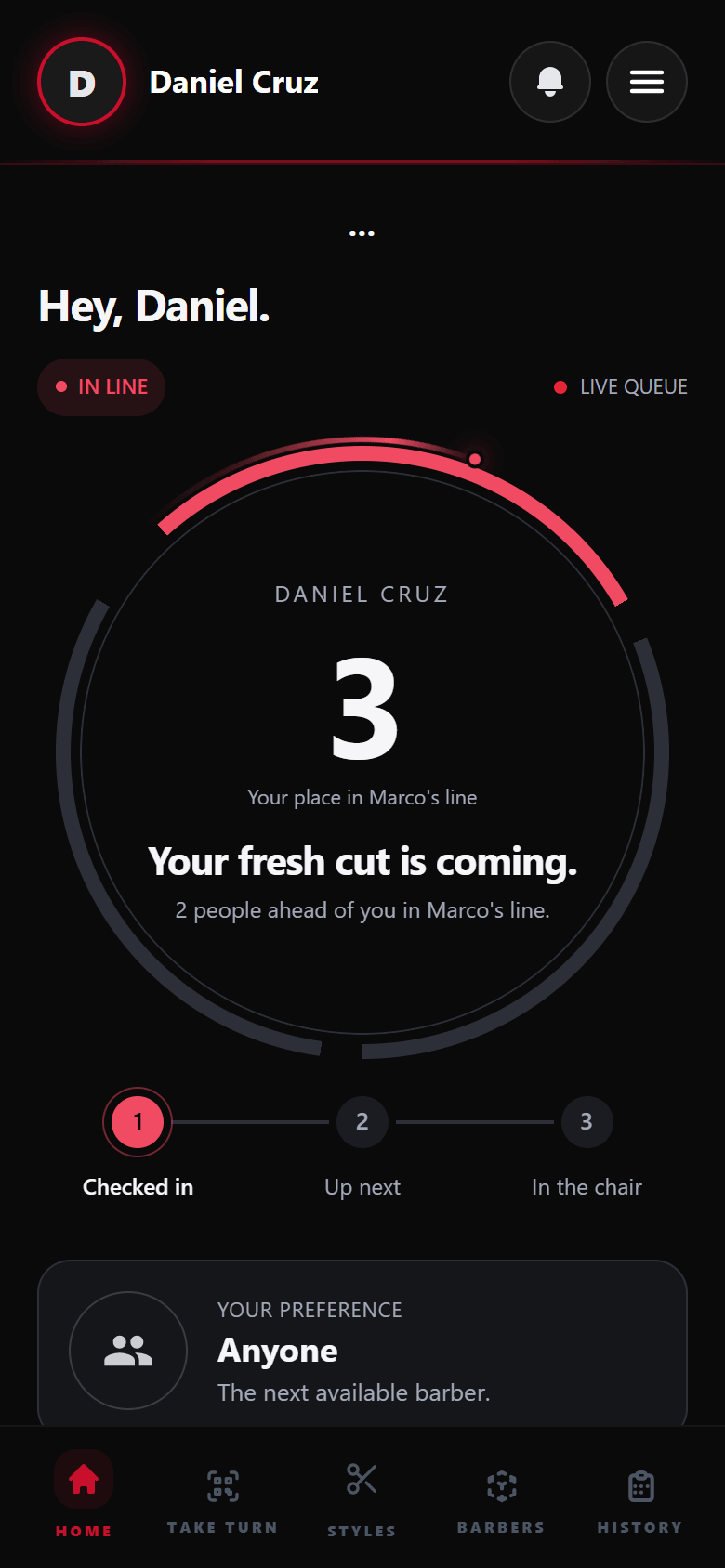
Follow your turn
The last screen is a ticket with their place in line, their barber and a QR code. Scanning the code opens the queue on the client’s own phone: position in line, estimated wait, and which barbers are free — updating on their own, nothing to install.
From there they can wait outside, run an errand, or sit down. If they ticked the box, a text arrives when their turn is close.
Five steps, every time after
The verification, the name and the consent question all belong to the first visit. None of them come back.
Phone
The client types their number and is recognised on the spot. No code, no waiting for a text.
Who’s getting a haircut
Their profiles are already there — themselves and anyone they’ve brought before. They tick who’s here today, or add someone new.
Service
The same list as always.
Barber
The same choice as always, with today’s availability.
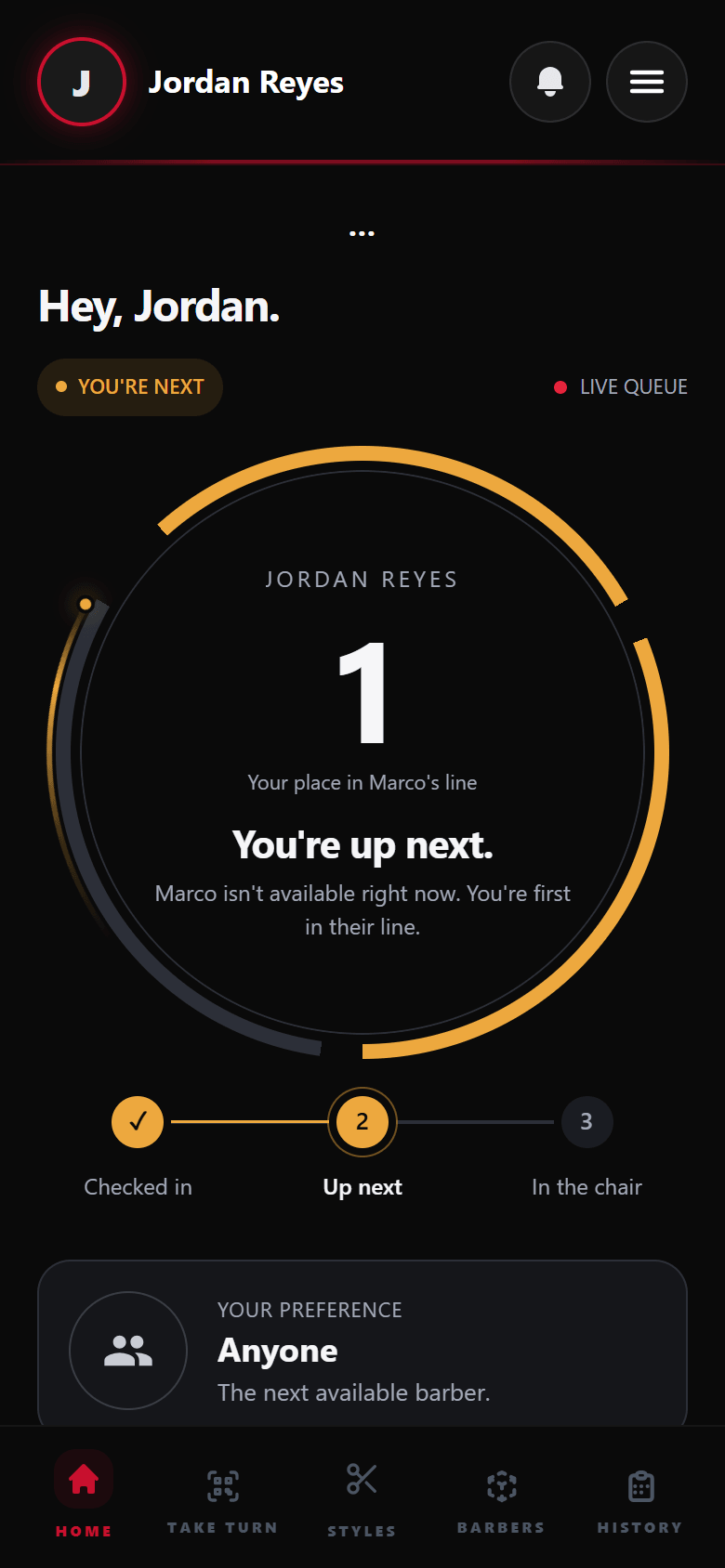
Follow your turn
The same live queue on their phone.
No verification, no typing their name, no consent question. They answered it once and the answer stands — a client who said no is never asked again, and neither is a client who said yes.
Meanwhile, on the barber’s side
The barber isn’t managing any of this. Their dashboard shows the same queue in the same order, with walk-ins and appointments already merged into one list. They swipe to start the next client, and the list moves everywhere at once — the kiosk, the client’s phone, and the rest of the team.
When the cut is finished it’s filed under that client’s history, and the shop’s numbers update: cuts today, walk-ins versus appointments, busiest hours.
Styles: pick the next cut
Waiting is a good time to decide. Shops that turn on Styles give their clients a catalog of 90 cuts to browse, filter and save — to show the barber once they’re in the chair.
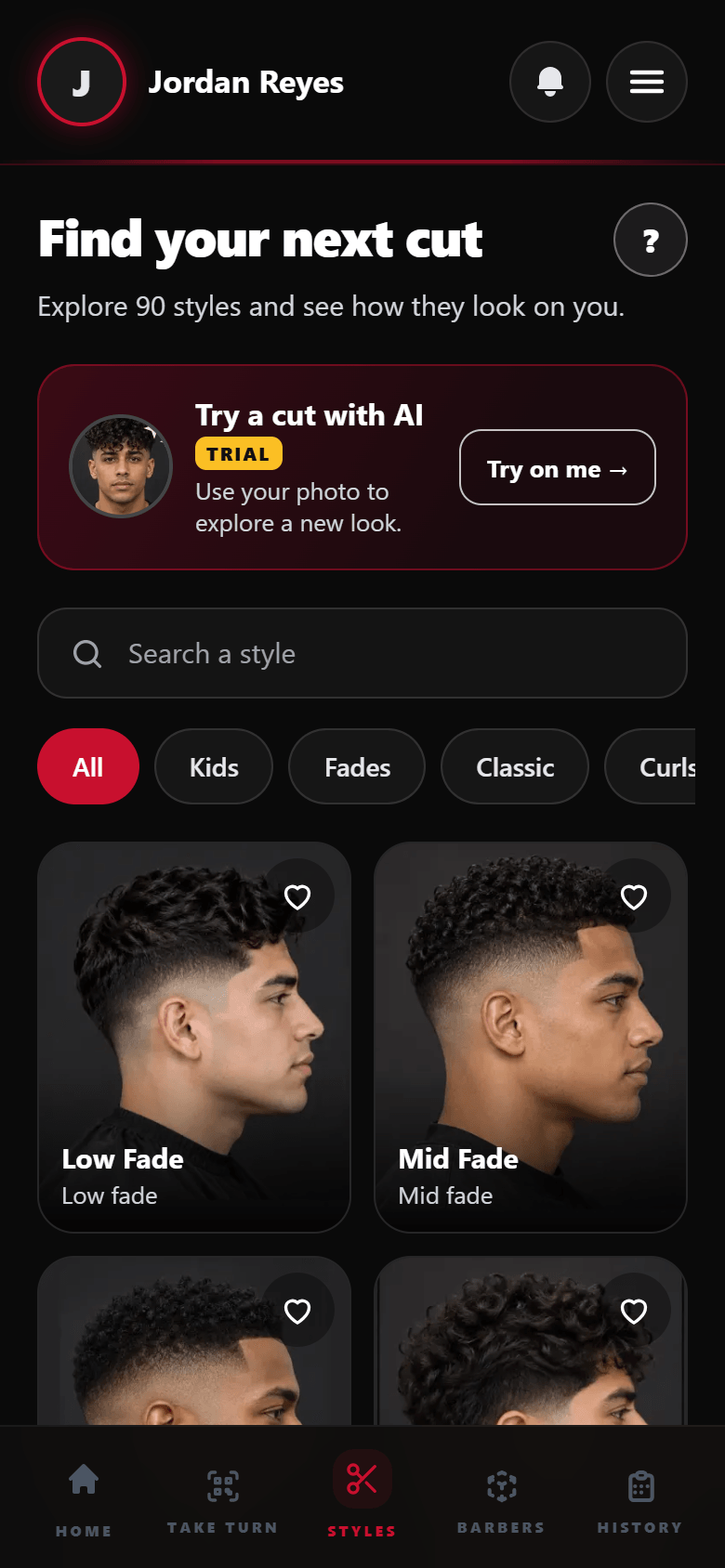
Browse the catalog
Fades, classic cuts, curls, long styles, designs, beards and kids’ cuts, each with its name and a short description. A search box finds a style by name, and the filters narrow the list to one category.
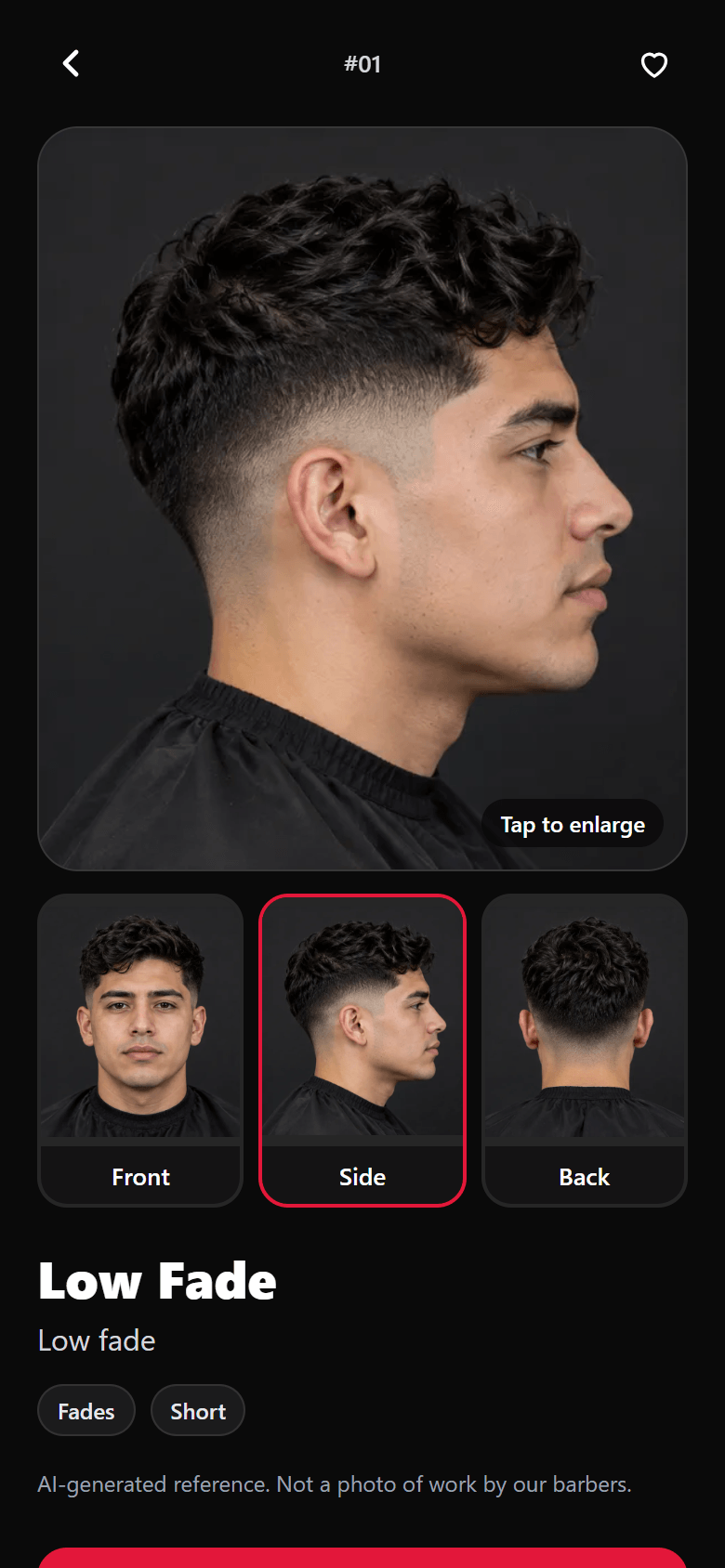
Every angle, then save it
Each cut shows from the front, the side and the back, and tapping the photo enlarges it. The heart saves it to Favorites, so the client has it ready when it’s their turn.
The reference photos are AI-generated, and the app says so on every cut — they’re not photos of the shop’s own work.